
Every SSL certificate requires Domain Validation (DV) before issuance. To complete DV, simply prove that you actually control every domain or public IP address on your certificate request. Sometimes domain validation is referred to as domain control verification (DCV).
You can validate your domain with a special DNS record or unique authentication file, or by email sent to a select few addresses on the domain.
This article dives into some of the most common problems faced during the domain validation process, and includes a few tips for setting yourself up for success before submitting your certificate request.
Certificate Enrollment Options
During the certificate enrollment step, you can make a few selections that ensure you can complete Domain Validation with little trouble.
The two most common snags include accidentally adding an extra "www" domain that you don't need, or having the domain approval email sent to the wrong level of your domain.
Specify Domain Coverage - include "www" or not
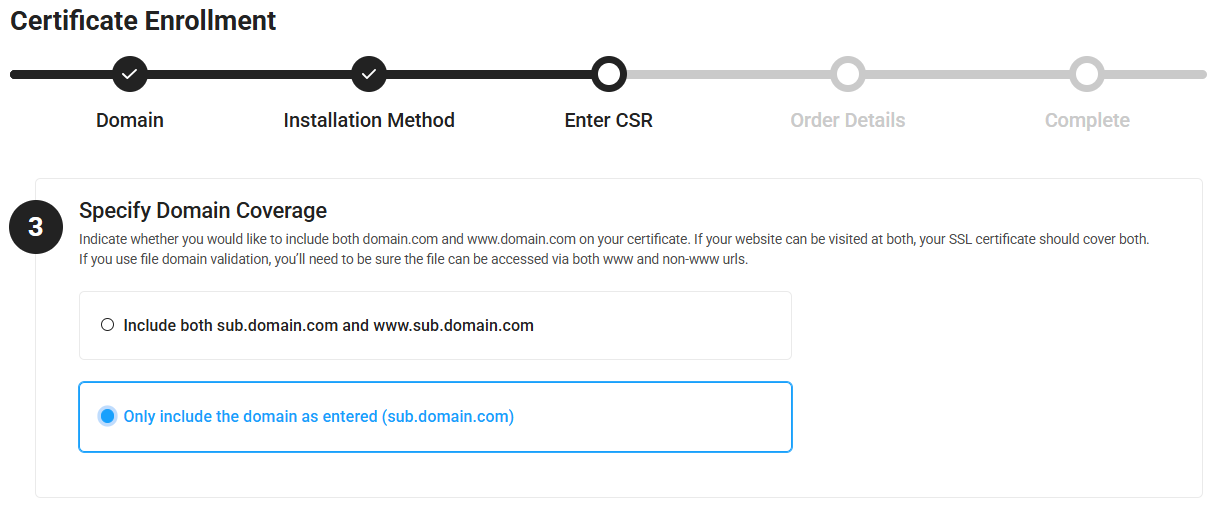
For a single-domain, non-wildcard SSL certificate, you have the option to include both www.domain.com and domain.com on your certificate. This option appears immediately after you upload your CSR (Step 3 - Specify Domain Coverage).
(Note: on a multi-domain SSL, you must manually add extra www or non-www domains as SANs.)
Most users want the SSL certificate to secure both domain.com and www.domain.com. For a single-domain (non-wildcard) SSL certificate, the enrollment form by default turns on the option to include both names.
A problem could arise when your CSR includes a sub-domain, like sub.domain.com. If you accidentally leave the default "www" option checked, then www.sub.domain.com will be added to your certificate request.
If you don't actually control www.sub.domain.com (or it doesn't exist) then it can't be validated, and the certificate can't issue.
Recommended setting:
- If your CSR is for a base domain (like domain.com) check Include both domain.com and www.domain.com
- Keep it checked if your CSR domain is www.domain.com, and you'll get the base domain.com added instead
- If your CSR is for a sub-domain (like sub.domain.com) check Only include the domain as entered
I already completed enrollment...
If you have already completed enrollment, our support team may be able to remove any unwanted www sub-domains from the order.
Domain Approval Email Address Selection
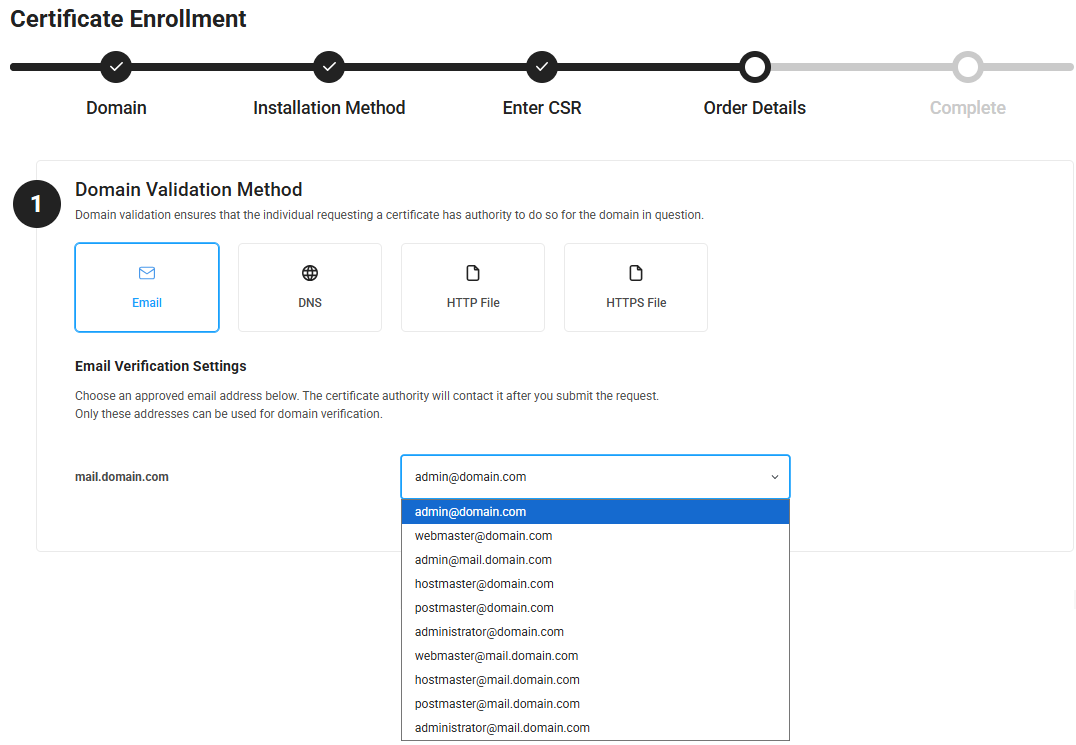
To complete domain validation by email, select one address to receive the domain approval email from the Certificate Authority.
The list of email addresses includes all pre-approved aliases on the base domain or the exact domain entered in the CSR. Select the email you want to use from the drop-down menu on the Order Details page.
You must control at least one of the pre-approved addresses (or forward from them to another address) to be able to complete domain control verification by email. The DCV email may not be sent to the WHOIS registrant email or to any other address.
I already completed enrollment...
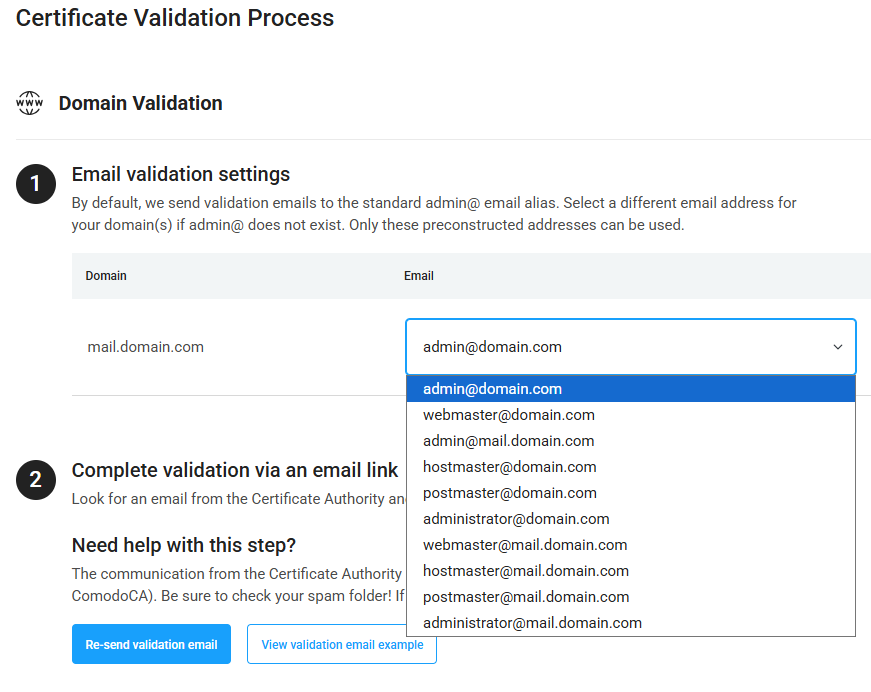
If you need to change the email address used for domain validation, go to your CertPanel order dashboard and select a different email from the drop-down list.
You can also Re-send validation email to have another email sent to the chosen address.
If the email address you want to use is not on the list, it is likely not eligible to complete domain validation. Our support team may be able to confirm the allowed email addresses and help to change the address or re-send the email if necessary.
Post-Enrollment DCV Troubleshooting
You will receive the exact instructions to complete domain validation as soon as you submit your order. The instructions are displayed on your CertPanel order dashboard, and you can make a few changes to the validation method there if need be.
Please contact our support team if you find any problem with your domain validation instructions.
Domain Approval Email Issues
Domain Approval Email isn't received
Certificate Authorities can send a domain approval email to any of the following "pre-approved" aliases addresses on the domain(s) in the certificate request. The aliases are:
- admin@yourdomain.com
- administrator@yourdomain.com
- hostmaster@yourdomain.com
- postmaster@yourdomain.com
- webmaster@yourdomain.com
You must control at least one of the above aliases to complete domain approval by email. The email may not be sent to any random address or WHOIS registrant email.
You may also set up your mail server to forward from the alias emails to another existing address.
DCV email goes to junk or quarantine
Comodo/Sectigo typically sends domain approval emails from the address noreply_support@trust-provider.com.
Because it comes from a noreply address, many mail servers can block or quarantine the domain approval email.
You may need to whitelist this address, as well as the sectigo.com domain to ensure your mail server does not block or quarantine emails from the CA.
DCV email sent to wrong domain scope
If your certificate contains any sub-domains, the domain approval email may not have been sent to the domain level you expect.
Double-check the selected email address on your CertPanel order dashboard and make adjustments and Re-send the validation email if necessary.
Use a DNS Checker
After you create the requested DNS record for validation, try using an online DNS record checker to confirm the record is online (and correct). Our own support team relies on sites like MxToolbox SuperTool and WhatsMyDNS to troubleshoot DNS DCV.
Comodo/Sectigo typically asks for a CNAME record that includes a unique "random value."
Search for the full CNAME host name in the DNS checker: _[randomvalue].yourdomain.com
The results should include the unique "point to" value provided in your DCV instructions, usually something like [randomvalue].sectigo.com.
If you can't find the exact record using a DNS checker site, there could be a few common issues going on.
The CNAME record cannot be found
If there are ZERO matching results in your CNAME, the record may just need a little more time to go live. It can sometimes take 24-48 hours for a DNS record to fully propagate around the world.
In some cases there may be an issue with the record itself, which might require troubleshooting with your DNS provider.
CNAME values don't match instructions
If a CNAME record shows up, but doesn't exactly match the "random value" generated in your domain validation instructions, double-check that the record you created includes the correct value.
Assuming the CNAME record doesn't just need more time to go live, you might need to confirm that you created the record exactly as requested, or you may have an issue that you need to address with your DNS host.
Domain name duplicated in the CNAME record
Sometimes a DNS host automatically appends your domain name to the end of your created record's host name. If you copied and pasted the exact host name value from your DCV instructions, your record might have accidentally gotten a duplicate domain name added to the end of it.
You can confirm this happened by searching for _[randomvalue].yourdomain.com.yourdomain.com using your preferred DNS tool.
If the record shows up under that name, you may just need to re-create the record only using the _[randomvalue] portion of the host name. In other words, only copy the front half of the instructed record name and let your DNS host complete it with the domain name.
Note: the _[randomvalue] value is unique to your domain name; double-check the DCV instructions on your CertPanel dashboard to confirm the correct value.
Check Your Authentication File Location
When you select the file-based domain validation method, you'll receive a special "authentication file" containing a unique set of values. You'll then need to host the authentication file on a specific directory on your domain, which turns into a URL like this:
http(s)://exactdomain.com/.well-known/pki-authentication/[filename].txt
If you visit the authentication file URL path in a web browser, you should see the plain text code within the file.
The file path must be accessible by any network in the world. To make sure it's globally accessible, try visiting the file path URL from another network besides the one your server uses.
If you have any trouble getting to the file page, the Certificate Authority may not be able to locate it either.
Common server errors
These are the most common error codes you might get if your authentication file cannot be accessed. Check with your hosting provider or server system admin to troubleshoot and resolve these errors.
- 403 error code - you do not have permission to access this file
- 404 error code - the file does not exist or can't be found in the specified location
- 500 error code - various unexpected issues including server timeouts or permissions errors
You may need to troubleshoot these error codes (and more) with your server/system administrator.
Automatic re-direct away from file path
Another common issue occurs when your authentication file page automatically re-directs or to a different URL.
The file MUST be located at the EXACT path specified in your DCV instructions.
Double-check that your server does not send visitors from the file path to a different part of the website, and make sure the file URL resolves exactly as requested.
File-based validation: Microsoft servers won't create the .well-known folder
Some Microsoft servers refuse to create a folder with a single dot in the name, which can make it hard to create the .well-known folder required for file-based authentication.
Try naming that folder with a dot in front and at the end, like this: .well-known.
The server should then create the folder with the correct name, ignoring the extra dot.
Other Possible DCV Issues
If you've done everything in your power to handle domain validation correctly and it's still not working, there are a few more potential culprits. Read more about additional CA requirements that can affect domain validation:
Multi-Issuance Perspective Corroboration (MPIC)
CAA Records for Comodo/Sectigo